Choose The Right Video Format For Speaking Practice
English learners need to connect sound with visible speech, yet a flashy lesson video can make that connection harder. If the mouth misses the audio, learners may copy the wrong timing. If the scene changes every few seconds, they may remember the visuals and miss the phrase. A teacher evaluating Lip sync ai should choose the video format around one learning objective before choosing effects.
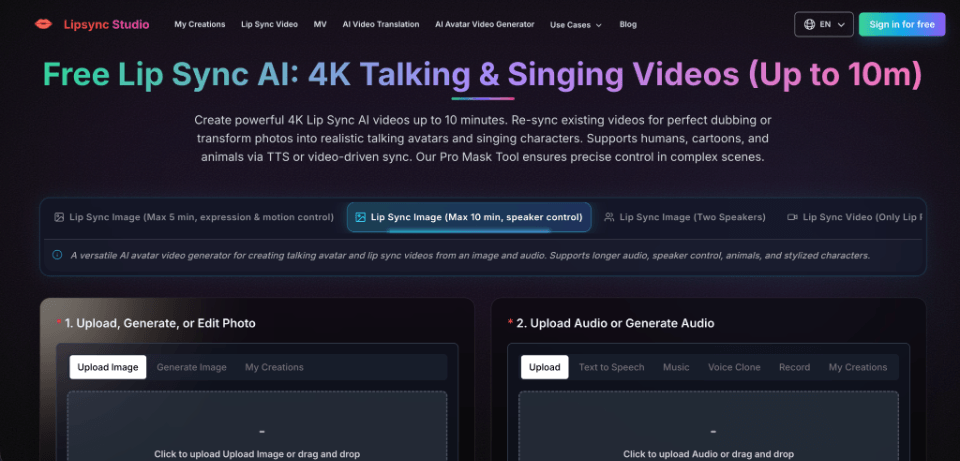
Five production routes inside Lipsync Studio cover different teaching jobs. A teacher can animate one portrait with speech, replace audio in an existing video, create a two-person dialogue, translate a source video, or build a multi-shot sequence around a complete lesson script. Each route changes how much visual information the learner must process and how much review the teacher must complete.
Start With The Language Skill Being Practised
A pronunciation clip, a listening dialogue, and a vocabulary review clip need different visual structures. Pronunciation practice benefits from a stable face and a clear mouth. Dialogue practice needs reliable speaker turns. A multi-shot review clip can support repetition across scenes, but the edit must leave enough time for the learner to hear and reuse the target language.
Write the acceptance rule before making the video. For a pronunciation item, the visible mouth should begin and end with the target phrase. For a dialogue, only the active speaker should move. For a multi-scene review lesson, every recurring segment should retain the same key words and give the learner a predictable visual cue.
The cost of skipping this decision appears during review. A teacher may approve a beautiful sequence and later discover that students cannot tell who spoke, where the phrase ended, or which word they should repeat. The rework then includes replacing the video, worksheet screenshots, and any instructions that refer to the old timing.
A test protocol can stay small. Give one colleague the clip without the lesson notes and ask them to mark the target phrase, the active speaker, and the point where repetition should begin. If any answer is unclear, the visual plan needs another pass before students see it. This is cheaper than discovering the same confusion after a class has used the worksheet.
Compare Four Routes Before Building The Lesson
The product’s workflows can be compared by the classroom job they perform. The table keeps the decision on teaching value rather than on the number of controls in the interface.
| Lesson goal | Useful route | Main review signal |
| Model one spoken phrase | Image to Lip Sync | Mouth timing and a stable, readable face |
| Practise turn-taking | Two-speaker image workflow | Only the correct character speaks at each turn |
| Reuse an existing explanation | Lip Sync Video or AI Video Translation | Meaning, timing, captions, and speaker identity stay aligned |
| Teach through a multi-scene lesson | Storyboard sequence workflow | Shot changes support the lesson structure rather than hiding it |
A teacher can now reject an attractive but unsuitable route before generation. One portrait may feel visually modest, yet it can outperform a multi-shot sequence when students need to watch one mouth. The larger storyboard earns its place when multiple scenes and visual repetition carry the lesson.
One Portrait Keeps Attention On One Phrase
The image workflow asks for a clear portrait and an audio file, then produces a talking clip. The site offers a speaker-control image model for audio up to ten minutes and an expression-and-motion-control model for audio up to five minutes. A teacher should still begin with a short phrase. Length limits describe capacity, not a recommended lesson duration.
Use a face that shows the mouth without a hand, microphone, or extreme angle blocking it. Play the result at normal speed and listen for the first and final consonants. If the lips close after the sound, or a long vowel ends while the mouth continues moving, the version should be discarded. Learners deserve a cleaner model than a general social audience might tolerate.
A second pass should use the final classroom crop. A mouth can look readable in a large preview and become unreadable when the portrait shares a slide with instructions. Check the smallest planned placement. If teeth blur into the lip edge or the face becomes too small to model pronunciation, change the layout instead of asking students to infer the movement.
Build Dialogue With Separate Speaker Tracks
The two-speaker workflow accepts a two-person image and two audio tracks, one for each speaker. For the recommended “meanwhile” mode, each file should contain only its assigned voice, with silence while the other person speaks. The timing between the two tracks creates the conversational flow.
This structure can support role-play before students perform the exchange themselves. A teacher can place the target question in the left track and the response in the right track. The listener remains silent while the active character speaks, which makes turn boundaries visible without adding arrows or labels to every sentence.
Audio preparation carries the real workload. If both voices leak into one track, or silence is removed between turns, the output may make both faces compete for the same moment. Split and preview the tracks before generating. That early check prevents a failed conversation from reaching a worksheet or classroom screen.
Silence Must Preserve The Turn Timing
Do not cut each speaker into a tight collection of spoken words. Keep silent spans so the left and right files share one timeline. When the first character speaks, the second track stays silent for the same duration. When the response begins, the first track carries the matching pause.
The review signal is visible and audible: one mouth moves, the other character listens, and the response starts after a believable gap. If both mouths move or the answer interrupts the question, send the audio tracks back for correction rather than trying to hide the conflict with captions.
Use Translation For An Existing Teaching Video
AI Video Translation follows a separate four-step path: upload the source video, choose the target language, select Fast or Advanced mode, and generate the translated version. The page positions Fast mode for quicker drafts and Advanced mode for work where quality carries more weight.
This route fits a lesson whose demonstrations, slides, and pacing already work. The teacher changes the spoken language while keeping the source structure. It does not remove the need to review terminology, captions, or cultural examples. A correct mouth movement cannot repair a mistranslated instruction.
Keep the source lesson open during review. Compare the order of examples, any on-screen text, and moments where the teacher points to an object. Reject a translation that delivers the right words after the gesture has passed or leaves an English label visible while the narration uses a different term.
This comparison needs a language owner, not only a video editor. The reviewer should confirm that the translated line matches the demonstrated action, that a grammar term stays consistent across captions and narration, and that examples remain natural in the target language. A late terminology fix can force new audio, new lip sync, and new screenshots, so approval should happen before the lesson is packaged.
Reserve Storyboards For Multi-Scene Lessons
A full multi-scene lesson creates a different teaching task. The storyboard workflow accepts a script or narration track, one to five visual references, a project title, and a creative prompt. It charges 15 credits to generate the storyboard. The system analyses the narration and creates an editable sequence that can map visual choices to lesson sections.
Teachers can adjust shot timing, prompts, references, lip-sync choices, and generated versions. They can also split or remove shots before composing the approved sequence with the original narration. Exports support six aspect ratios and 720p, 1080p, or 4K. Those options help when the same lesson must appear on a classroom display and a mobile practice page.
The storyboard should repeat instructional cues, not add a new visual idea to every scene. Keep one setting for the target phrase, reuse a character or object when a recurring segment returns, and let the shot remain long enough for students to hear the words. Rapid novelty can make the video memorable while making the language harder to retrieve.
Build the first board around section boundaries and read every planned cut against the script. If a shot changes between the article and its noun, extend the shot or move the cut. If a recurring segment introduces a new costume, location, and camera angle at once, students must rebuild the scene while listening to repeated language. Keep at least one visual cue stable across the return.
A simple planning grid can prevent that problem:
- Intro: show the topic and one visual cue without new vocabulary.
- Segment One: introduce the target words in a stable setting.
- Repeat Segment: repeat the same words with the same core visual markers.
- Variation Segment: vary the context while keeping the language readable.
- Outro: return to the phrase students should remember.
Lipsync Studio uses credits across its production tools. Subscription credits are issued in full on annual purchase and refresh annually. One-time credit purchases never expire. For schools or independent tutors, that difference affects the budget: a recurring plan suits a predictable production schedule, while non-expiring credits reduce pressure to generate lessons before a monthly deadline.
The public API documents per-second costs and a five-second minimum charge for lip-sync endpoints, but the web storyboard workflow exposes its own 15-credit storyboard cost. Do not mix those figures into one estimate. Record which workflow produced each charge and count revisions before approving a series. A sequence that needs several regenerated shots can consume more review time than the first storyboard suggests.
The platform grants free and paid generations a worldwide, royalty-free commercial-use license without an attribution requirement. A teacher or school must still hold permission for uploaded faces, voices, and source videos. Keep that rights check beside the production budget rather than treating it as a final publishing note.
Human Review Still Needs Four Clear Checks
The service does not guarantee perfect synchronization for every input. Teachers must review mouth timing, translated meaning, speaker turns, and rights before class use. Poor source angles, overlapping dialogue, or crowded storyboards can still produce an unusable lesson, even when generation completes.
Match The Tool To The Teaching Moment
For a teacher, Lipsync Studio is most useful when the narrowest workflow serves the lesson. One portrait fits a pronunciation model. Separate tracks fit a dialogue. Translation fits an approved existing explanation. A storyboard fits a multi-scene lesson whose sections support deliberate repetition.
The final test belongs with the learner: can they identify the phrase, see who speaks, and repeat it without decoding the video first? If the answer is yes, the visual work supports instruction. If the effect asks for more attention than the language, simplify the route before generating another version.